Google Street View and Satellite Maps: Plan the Arrival, Not Just the Address
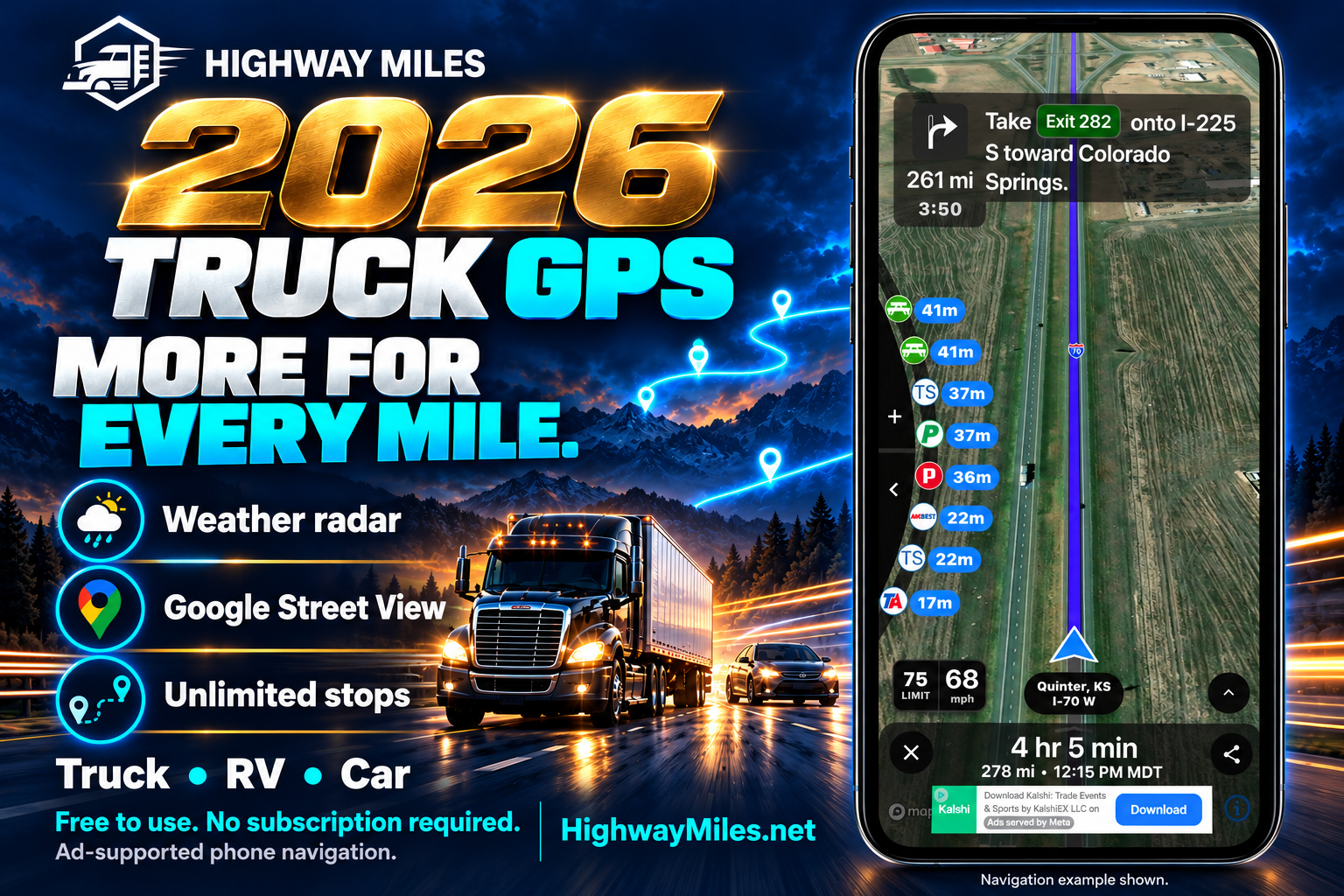
Combine road-level and overhead views before a truck delivery, RV stop or unfamiliar car trip.
Highway Miles planning features. Promotional illustration with a navigation example, not a Street View image.
A destination pin answers one question: where is the place? Before arriving in a truck or RV, you often need answers to several more. Which road leads to the correct entrance? What does the driveway look like? Where should you check in, and how will you leave?
Highway Miles includes Google Street View access, where imagery is available, alongside its map-based trip-planning tools. Using Street View and satellite imagery together gives you two different perspectives on the same destination.
The purpose is to understand the layout and identify questions you should resolve before arrival. Neither view guarantees that an entrance is open or suitable for your vehicle.
What satellite imagery helps you see
An overhead view can make the overall property easier to understand. You may be able to identify the relationship between public roads, buildings, parking areas, driveways and internal circulation.
For a warehouse, this might help distinguish the office side of the property from the loading area. For a campground, it may help you understand how the entrance connects to the internal road network. For a fuel stop, it can show how the forecourt sits between the entry and exit.
Begin with the wider area, then move closer. Looking only at the destination pin can hide the approach road or a separate access point.
Overhead imagery does not reliably establish clearance, turning room or permission to use an area. Shadows, trees, structures and the age of the image can obscure important details.
What Google Street View adds
Street View supplies a view from the road where coverage is available. That perspective can help you recognize an entrance, see the shape of the approach and compare landmarks with instructions from the destination.
In Highway Miles, open the location and use its Street View option when available. Our Highway Miles app tutorial introduces the location and map tools.
Look at the approach from the direction you expect to travel. A driveway that looks obvious from one direction may be less obvious from the other. Pay attention to the relationship between the entrance and nearby intersections, medians or other driveways.
A sign visible in older imagery is a clue to investigate, not proof of today’s rule. Follow current signs and instructions when you arrive.
Put the two views together before choosing a stop
Start with the correct vehicle mode and profile. Highway Miles supports truck, RV and car modes; our vehicle-mode guide explains when to use each.
Next, inspect the proposed destination on the map. Use the overhead view to understand the property, then Street View to investigate the public-road approach. Compare both with the facility’s current instructions.
If something does not line up, resolve the uncertainty before adding the location to your final plan. The office address and the authorized truck gate may be different. An RV park may ask larger vehicles to use a particular entrance.
Once access is confirmed, review the route to that approach. A better understanding of the property does not override restrictions on the roads leading to it.
Example: a delivery with more than one driveway
Suppose the map pin is near the front office, but the receiver tells you to enter from the road behind the building.
Satellite imagery may help you locate that road and see how it relates to the loading area. Street View may help you recognize the turn from the public road. You can then ask the receiver about the correct gate, check-in location and any permitted waiting area.
The important result is a confirmed arrival plan. Do not treat an apparently open driveway in an image as authorization to enter it.
For more on the broader workflow, see Highway Miles’ commercial truck navigation features.
Example: an RV stop with an uncertain exit
For an RV travel day, consider the whole visit to a stop. An entrance can look convenient while the exit or internal circulation remains unclear.
Use overhead imagery to examine the relationship between the two. Use Street View to investigate the roadside approach. If you cannot establish a suitable path, call the operator or choose another stop.
For a campground, confirm the site assignment and access details directly. Street View may show only the public road outside the property. It does not establish that a campsite will fit your motorhome or trailer.
Car trips benefit from a preview, too
In car mode, an arrival preview can help you recognize an unfamiliar driveway or understand which side of a property to approach.
The questions may be simpler than those for a commercial truck, but the same distinction applies: a destination’s address is not always its best arrival point. Review current parking and access instructions rather than assuming an image tells the complete story.
Know when imagery cannot answer the question
Street View and satellite imagery are not live video. They may show an older layout, miss a recent closure or lack coverage at the point you need to inspect. They cannot tell you whether a parking space is empty now.
Avoid making clearance or vehicle-fit decisions by estimating dimensions from an image. Use reliable vehicle measurements and current destination information. If the real approach differs from your plan, stop somewhere safe and reassess.
Street View generally needs an internet connection. Downloaded maps should not be treated as a guarantee that Street View or other online services will work without reception.
Make arrival planning part of the trip
Highway Miles brings vehicle modes, unlimited-stop route planning, weather information and Google Street View into the same planning experience. These are some of the reasons we believe it is one of the GPS navigation apps to consider in 2026.
Before your next unfamiliar stop, take a few minutes while parked to review both perspectives and confirm any unresolved access details.
Download Highway Miles for free, ad-supported phone navigation. Plan the route, understand the approach and arrive prepared.